
Confirmation pages
Overview
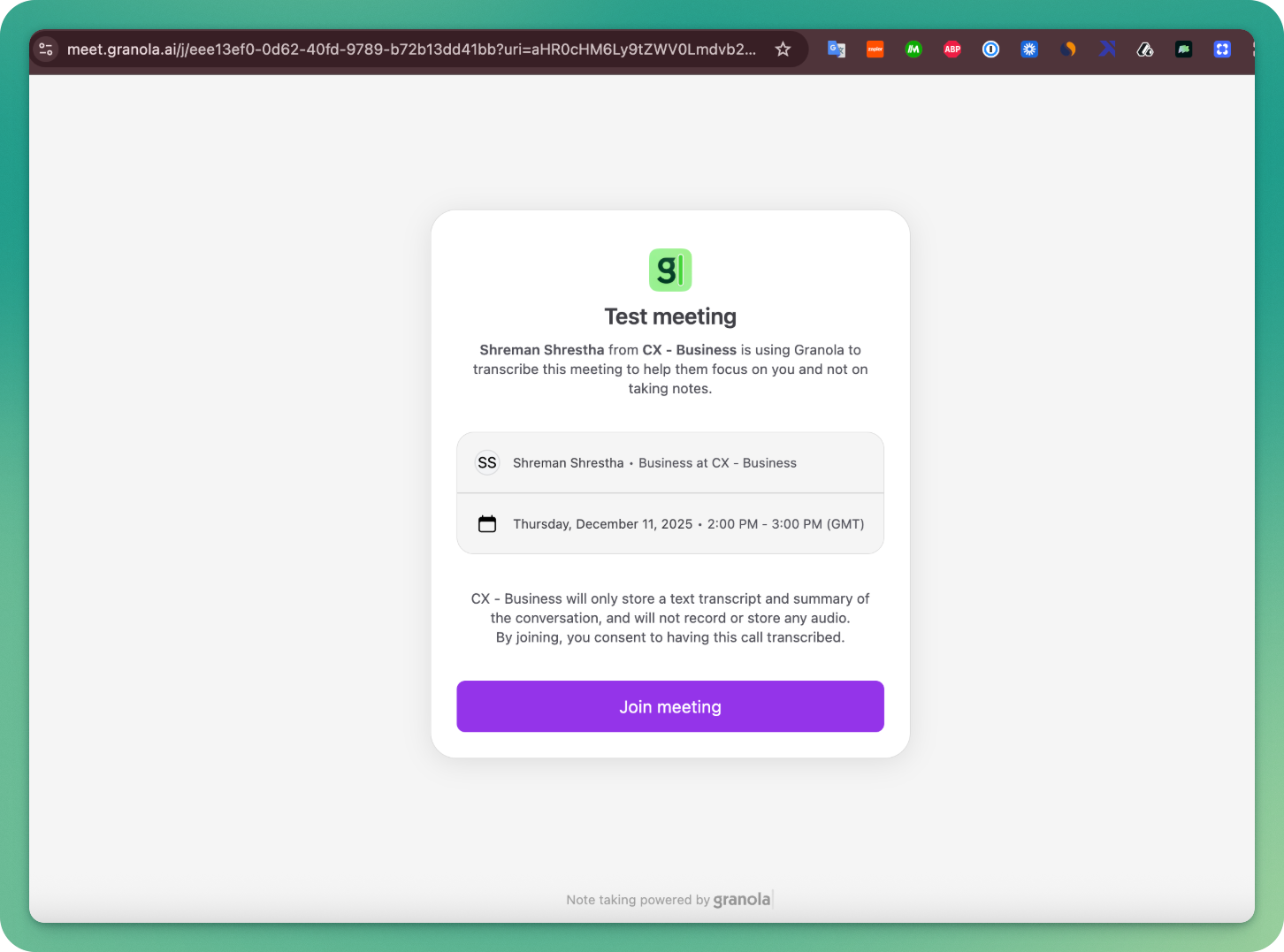
The confirmation page replaces standard meeting links with Granola-enabled links that require participants to explicitly click to join a meeting. When participants click your meeting link, participants are directed to a confirmation page where they must click "Join meeting" to proceed to the actual meeting.
Who can enable this
Enterprise Workspace admins part of the pilot can install the calendar add-on for their organization. Once installed, any user can choose to create meetings with the confirmation page, or admins can set it as the default for all meetings.
Currently only available for Google Calendar and Google Meet.
How it works
When you create a meeting with the Granola calendar add-on:
A Google Meet link is created with all your normal admin settings applied
The meeting link is replaced with a Granola redirect link in the calendar invitation for all participants
When participants click to join, participants see a confirmation page before entering the meeting
Participants click "Join meeting" to confirm and are immediately redirected to the actual meeting. This is one extra click for participants.
Confirmation is logged with the user agent, meeting ID, and timestamp for your audit records
Turning confirmation page on for your workspace
For Granola admins:
Navigate to your Settings
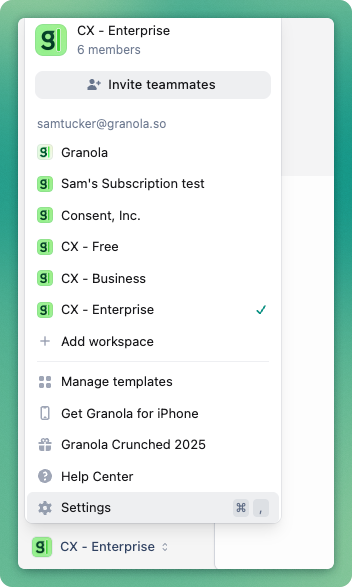
2. Find the Workspaces section
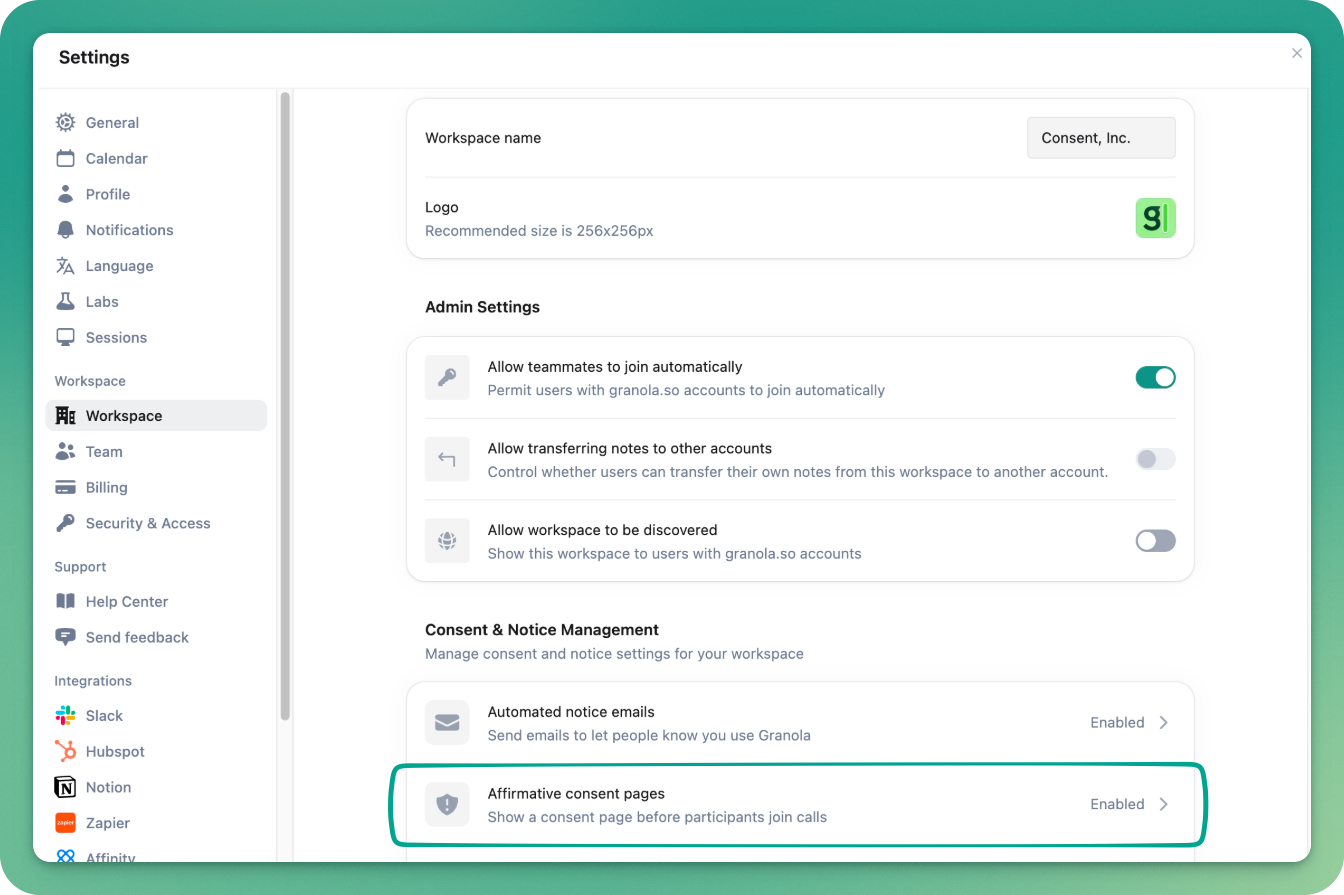
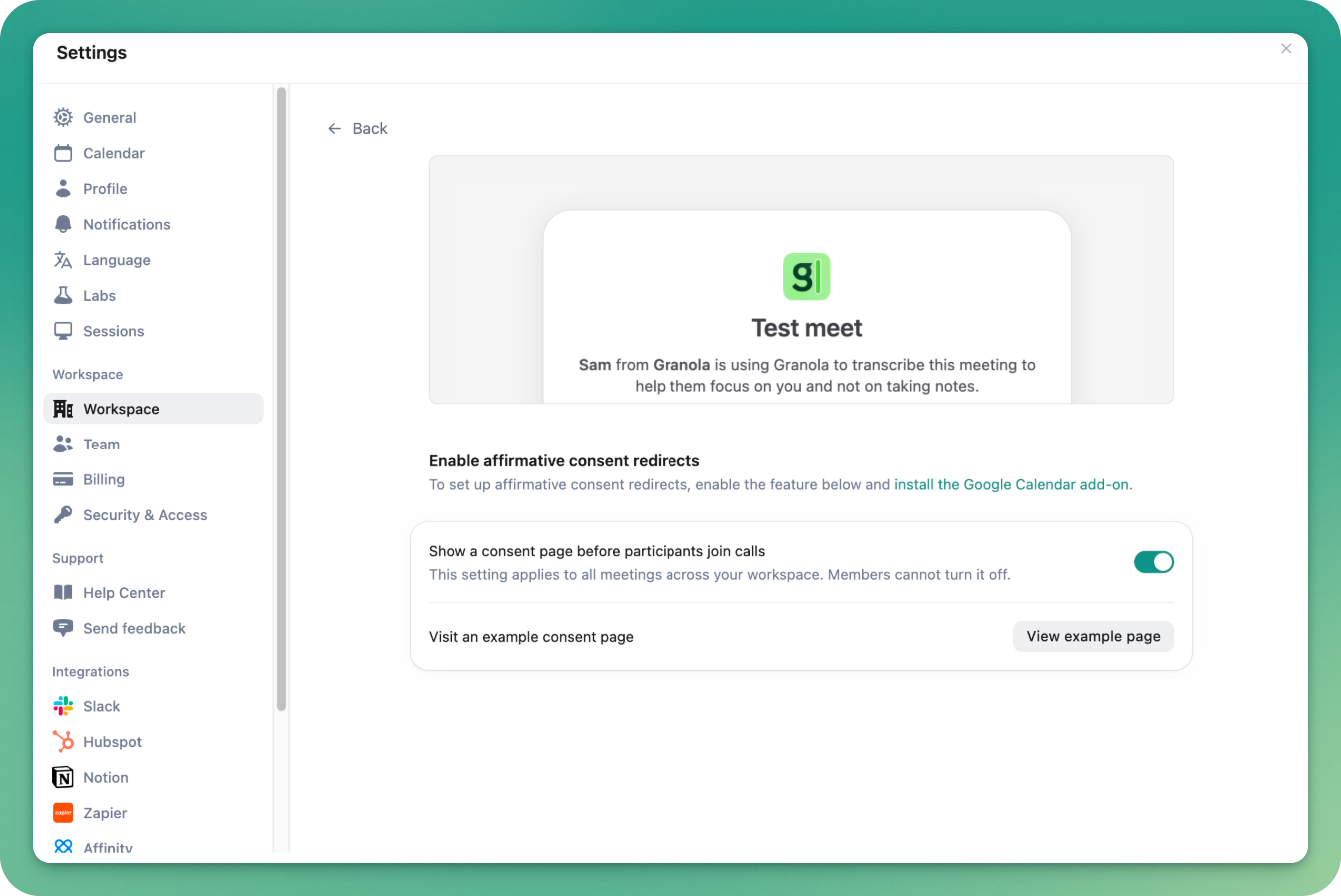
3. Toggle on and enable Affirmative consent pages for your workspace members. Once enabled, all users in your workspace can enable the confirmation page for meetings they organize.
See a preview page by clicking "View example page"
Then your Google Workspace Admin has to complete the final setup (instructions below).
For Google Workspace admins:
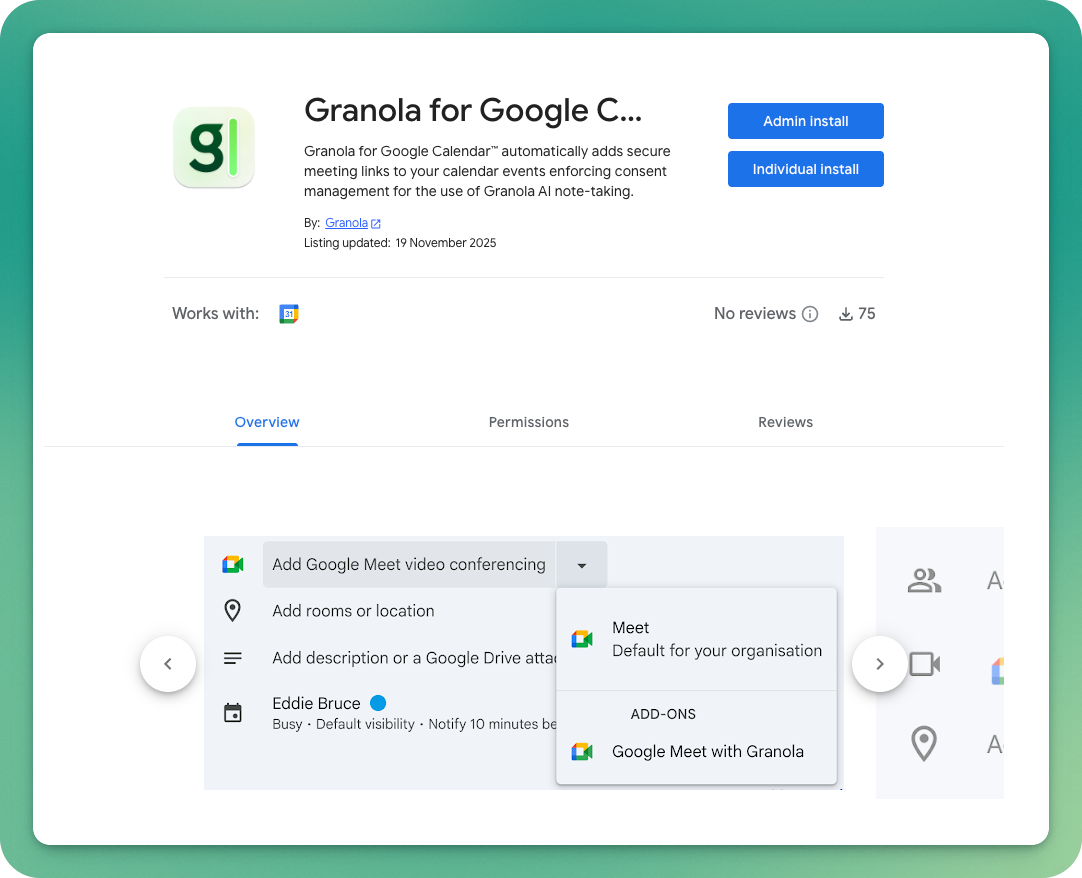
Navigate to the Granola add-on page
Click "Admin install"
Follow the prompts to authorize the add-on for your workspace
Once installed, users in your workspace will see new options when creating calendar events.
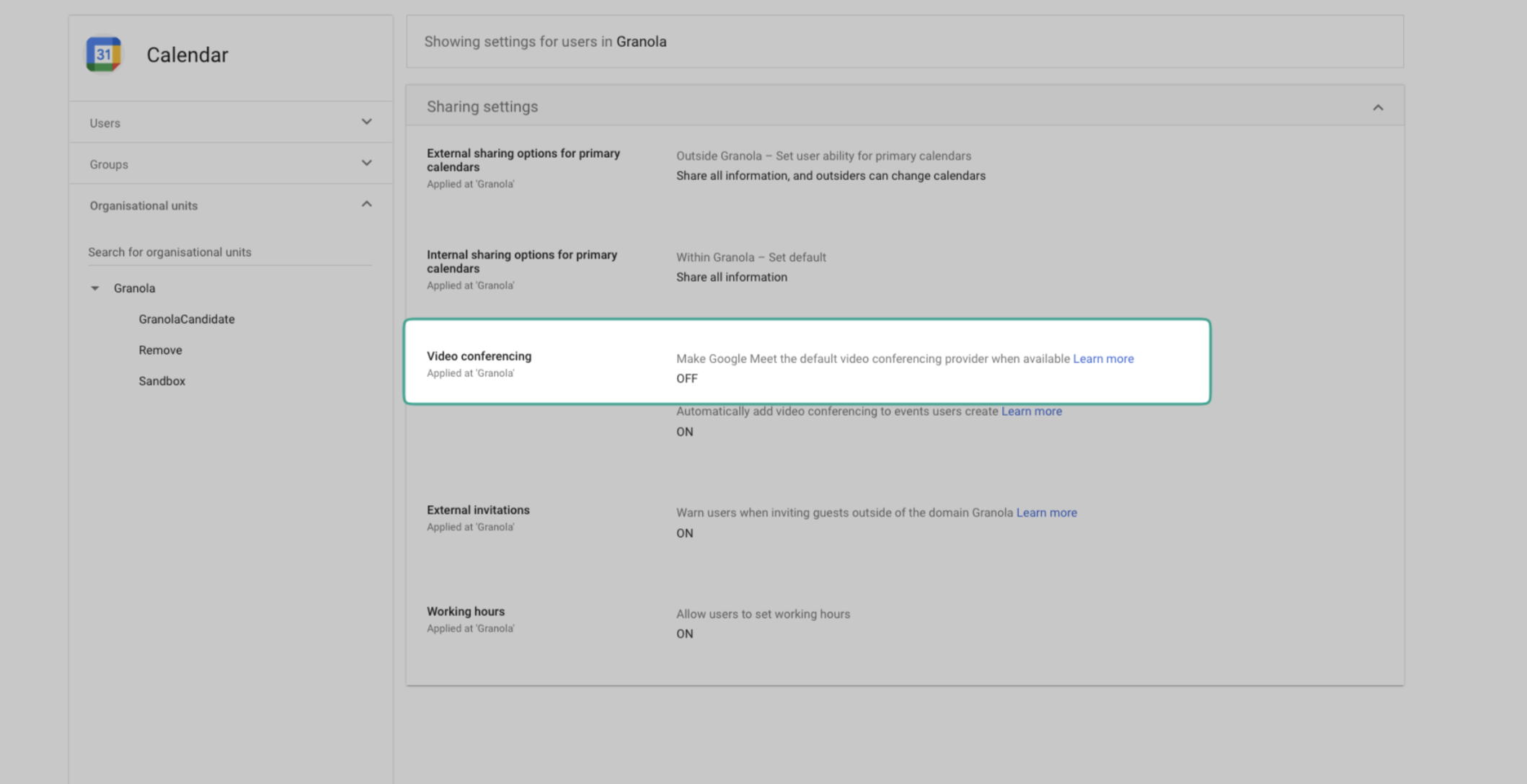
(Optional) Set the add-on as the default conferencing option for all users here
Make "Granola with Google Meet" your default video conferencing provider under 'Video conferencing'
Creating confirmation page enabled meetings
For meeting organizers:
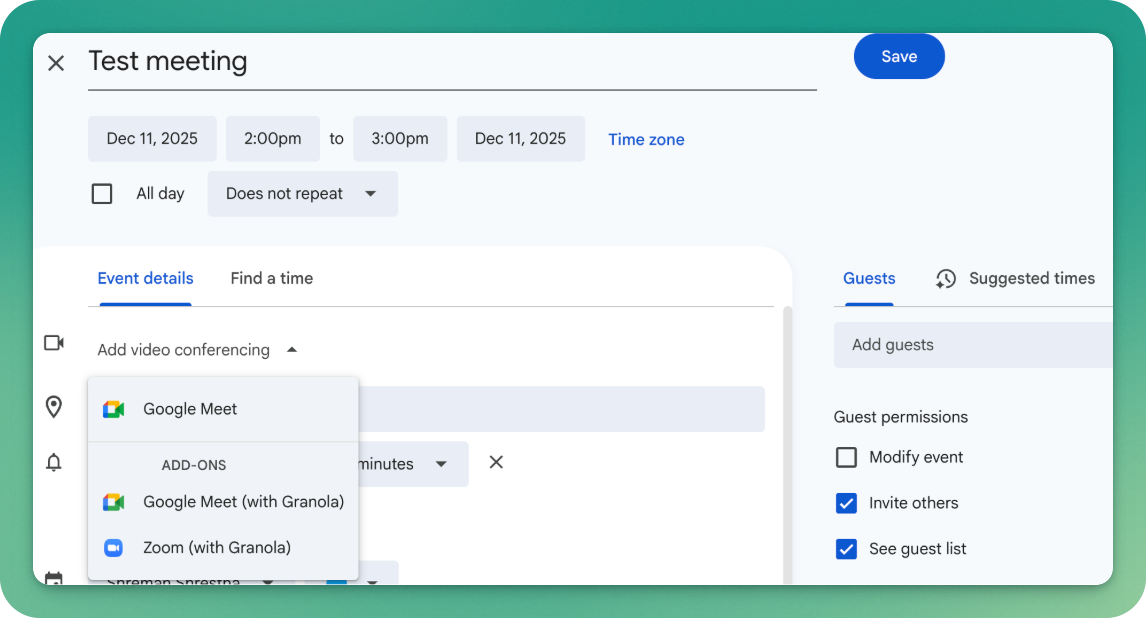
Create a new calendar event in Google Calendar
Instead of clicking your default video conferencing provider, you'll now see Google Meet with Granola
Select your preferred option
Add your meeting participants and details as normal
Save the event
The meeting invitation will include a Granola redirect link instead of the direct conference link.
Note:
Meeting organizers can choose their normal video conferencing provider if they do not want the participants of a meeting to see the confirmation page
Google Calendar will default to the video conferencing provider you last selected for your next meetings
What participants see
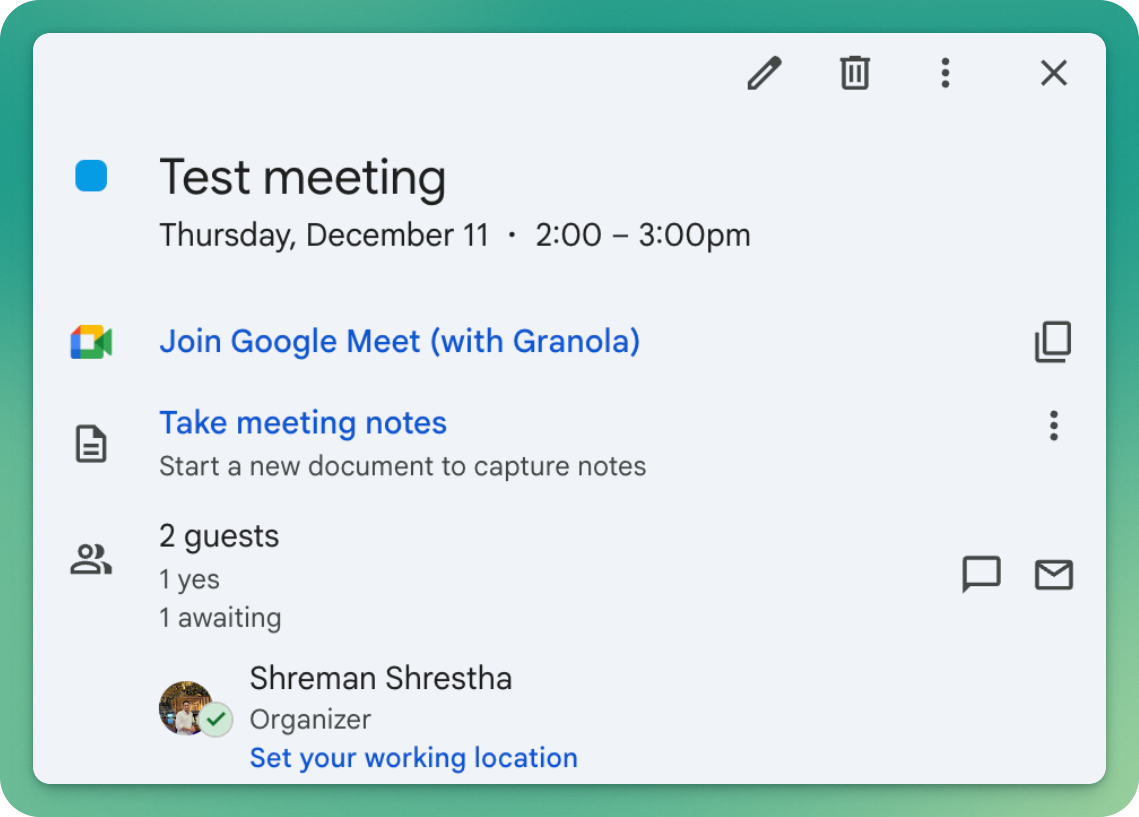
On the calendar, participants will see "Google Meet (with Granola)".
When a participant clicks the meeting link, participants will see a confirmation page that includes:
Meeting details (title, time, organizer)
Clear explanation that Granola will be used for AI note-taking
"Join meeting" button to confirm and proceed
Your organization's information
After clicking "Join meeting," participants are immediately redirected to the Google Meet call. The process typically takes less than a second.
Audit logging
Every time someone clicks "Join meeting" on the consent page, Granola logs:
Meeting ID
Date and timestamp of consent
User agent (browser/device information)
This creates an audit trail showing that participants gave confirmation before joining the call. Workspace admins can request access to these logs for compliance purposes by emailing hey@granola.so.
How to uninstall the add-on
Navigate to the Granola add-on page
Click "Uninstall".
Note:
We do not store any of your data after you uninstall
More information on uninstalling add-ons here.