
Signing in and connecting your calendar
The information on this article is for the Desktop version on Granola (macOS and Windows).
Microsoft and SSO login is not currently available on iOS.
Granola offers three ways to sign in, each designed to connect seamlessly with your calendar so we can pull your meeting events. Choose the option that matches your work setup: Google, Microsoft/Outlook, or SSO for enterprise users.
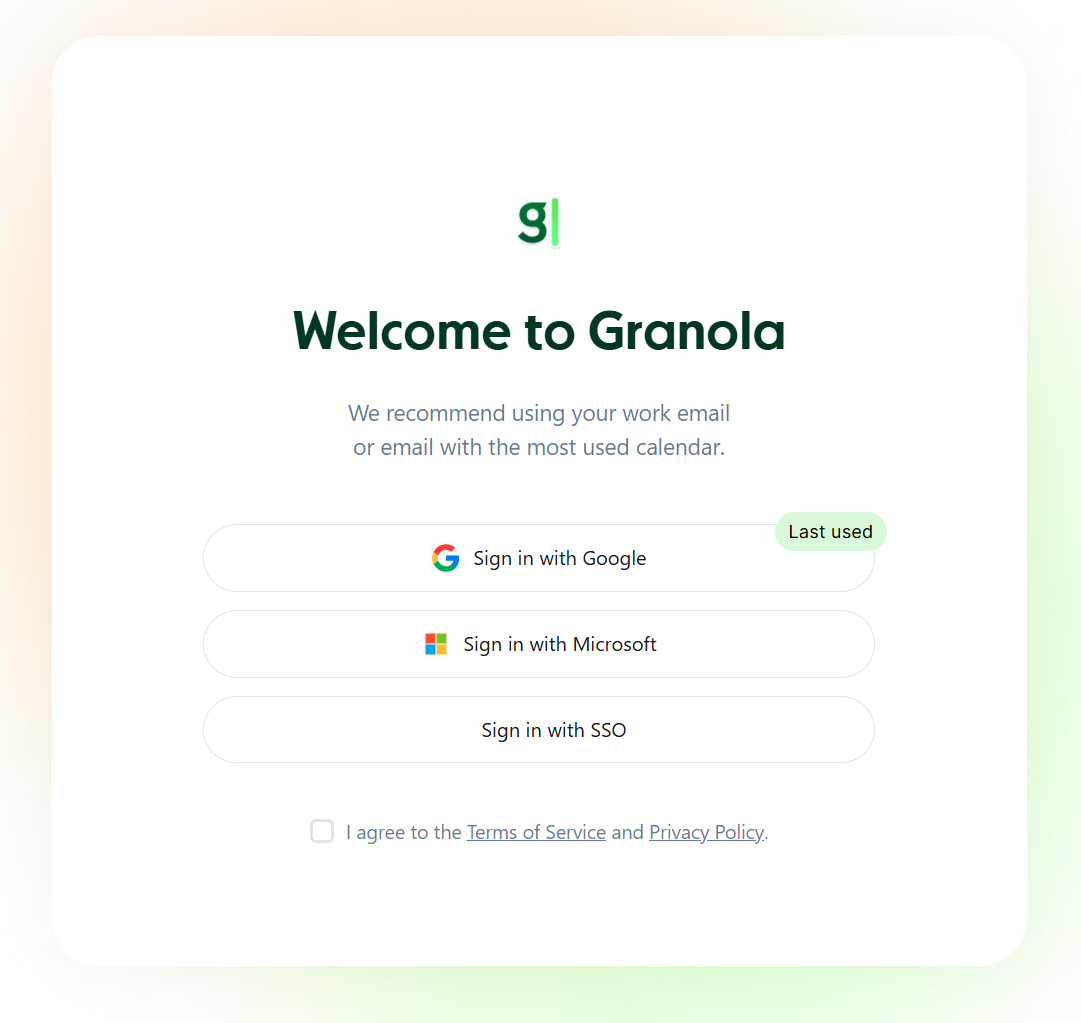
Sign in with Google
Use this option if you have a Google Workspace or Gmail account. Signing in with Google automatically connects Granola to your Google Calendar.
Click Sign in with Google
Choose your account (we recommend choosing whichever has the calendar you use most)
Grant the relevant permissions for Granola access to your calendar (this allows Granola to get your event information for context and notifications)
After completing the permission flow, you’ll be redirected back to the Granola app and signed in automatically.
Please note: if using a gmail account, you may need to click 'Join the waitlist' to start using Granola. You'll be automatically let straight through - we're currently migrating to allow gmail accounts.
Sign in with Microsoft
Use this option if your organization uses Microsoft 365 and Outlook calendar. This method connects Granola to your Outlook calendar to pull your meeting events.
Click Sign in with Microsoft
Choose your account (we recommend choosing whichever has the calendar you use most)
Grant the relevant permissions for Granola access to your calendar (this allows Granola to get your event information for context and notifications)
Please note: you may see a screen asking you to request admin permissions, in which case an admin will need to approve Granola on their portal.
Once you’ve completed the process, you’ll be redirected back to Granola with your Outlook calendar connected.
Sign in with SSO (Enterprise tier only)
SSO authentication is available for enterprise customers with 100 or more users. This option requires a two-step process: first signing in via SSO, then linking your calendar.
Open Granola after downloading and installing
Click Sign in with SSO
Complete your organization’s SSO authentication process (you may need to request admin approval)
After successful SSO login, you’ll be prompted to link your calendar
Choose either Google Calendar or Microsoft/Outlook Calendar depending on what your organization uses
Grant calendar permissions through the selected provider
If your organization is interested in setting up SSO authentication with Granola, contact us at hey@granola.so. We work with enterprise customers to configure custom SSO setups.
Troubleshooting
Gmail “waitlist” message
If you’re signing in with a Gmail account and see a message about joining a Gmail waitlist, simply click the Join Gmail waitlist button. You should progress straight through to complete your login—this is expected behavior.
Admin approval required (SSO or Microsoft login)
Some enterprise SSO configurations require admin approval before you can complete authentication. If you see this screen, contact your IT administrator to approve Granola’s access request. This is a one-time setup step.