
Sign in with Microsoft
Approval required?
When you use “Sign in with Microsoft”, you may see a screen like this:
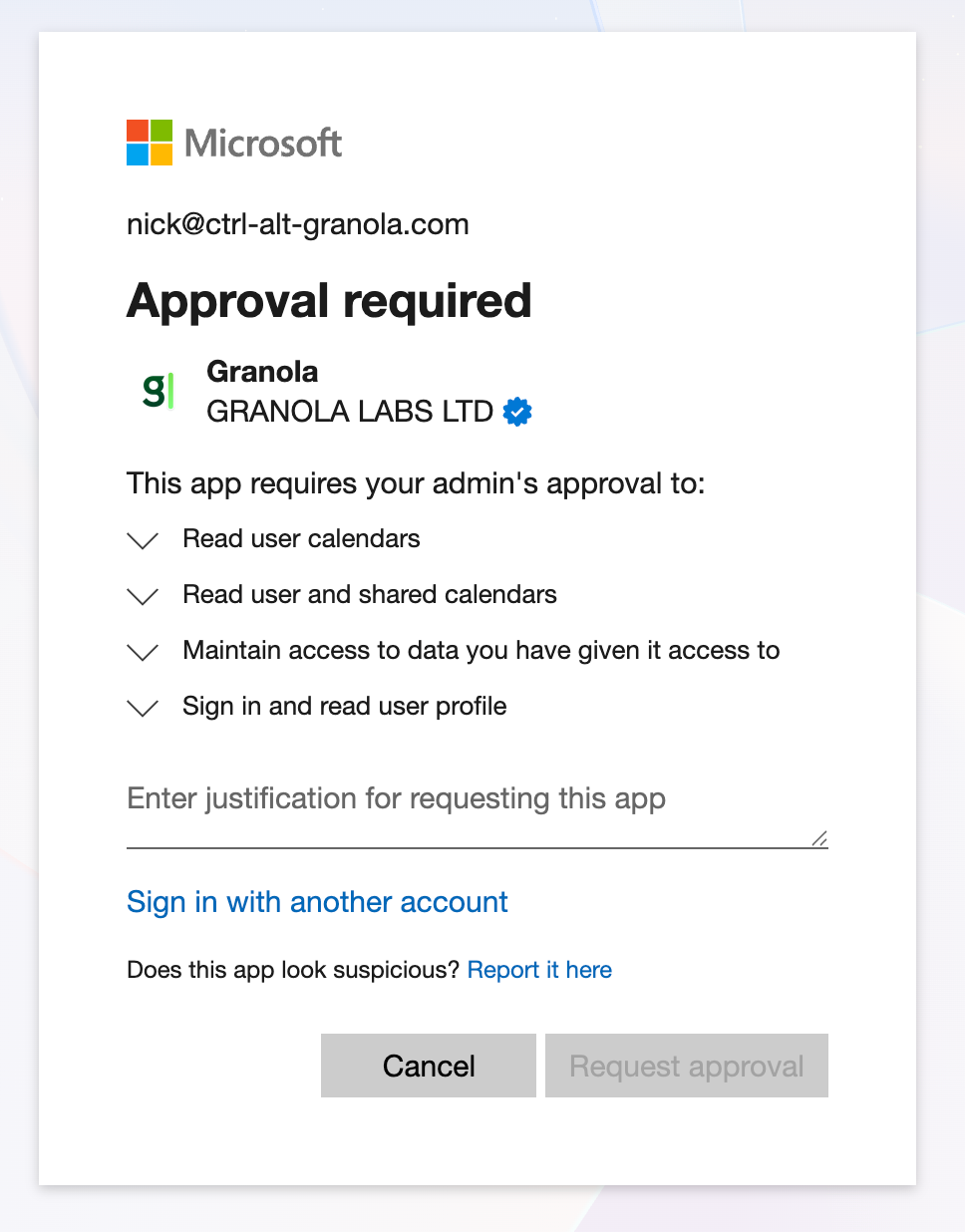
The "Approval required" screen is usually because Granola requests permission to view your calendar events.
If you see the “Request approval” button, we recommend this "justification" message: “I want to use Granola for my meeting notes. Granola needs to read my calendar events so that it can start and stop transcribing at the right times, and so that it can better summarize my meeting notes.”
Admins: how to approve Granola
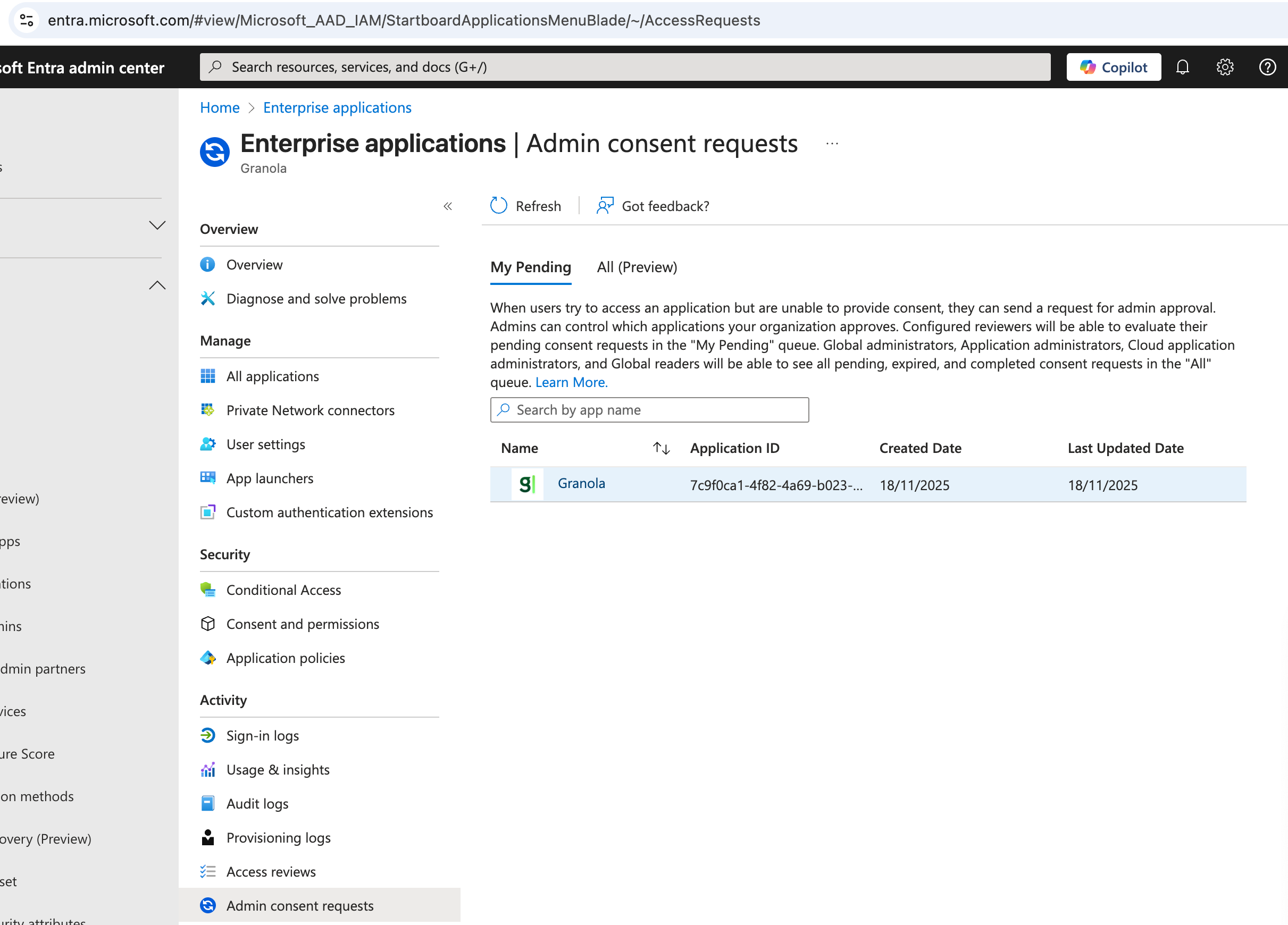
As an admin of your Microsoft 365 organization, to approve your user's request:
Click on your user's approval request. It will be called "Granola":
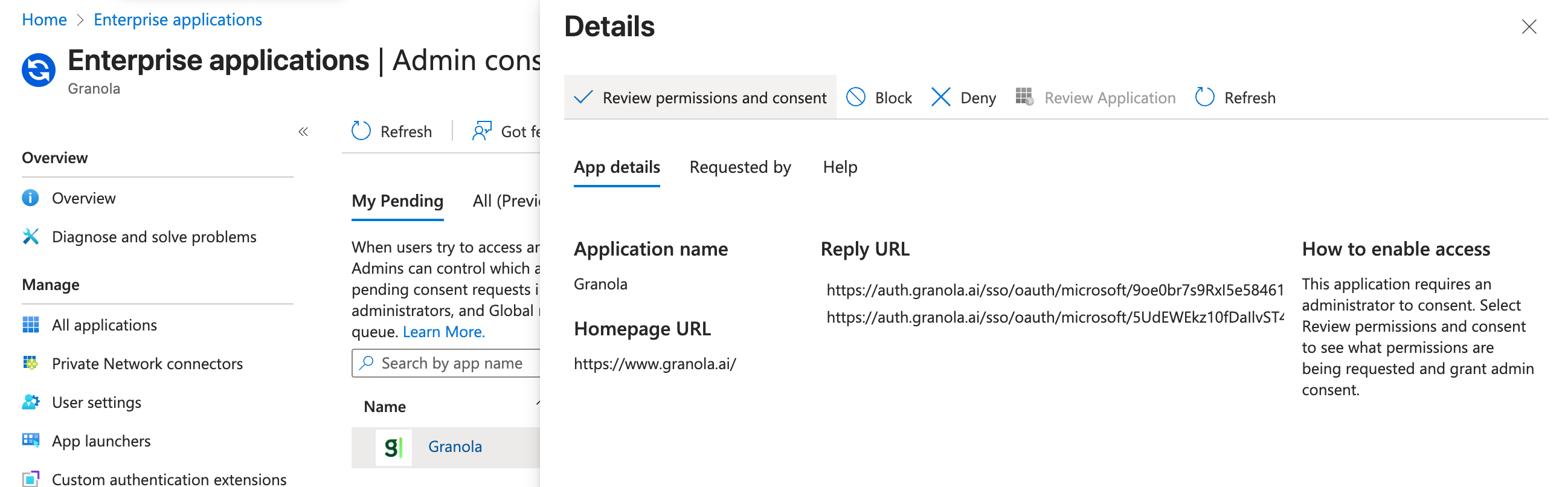
Click “Review permissions and consent”:
Click "Approve":
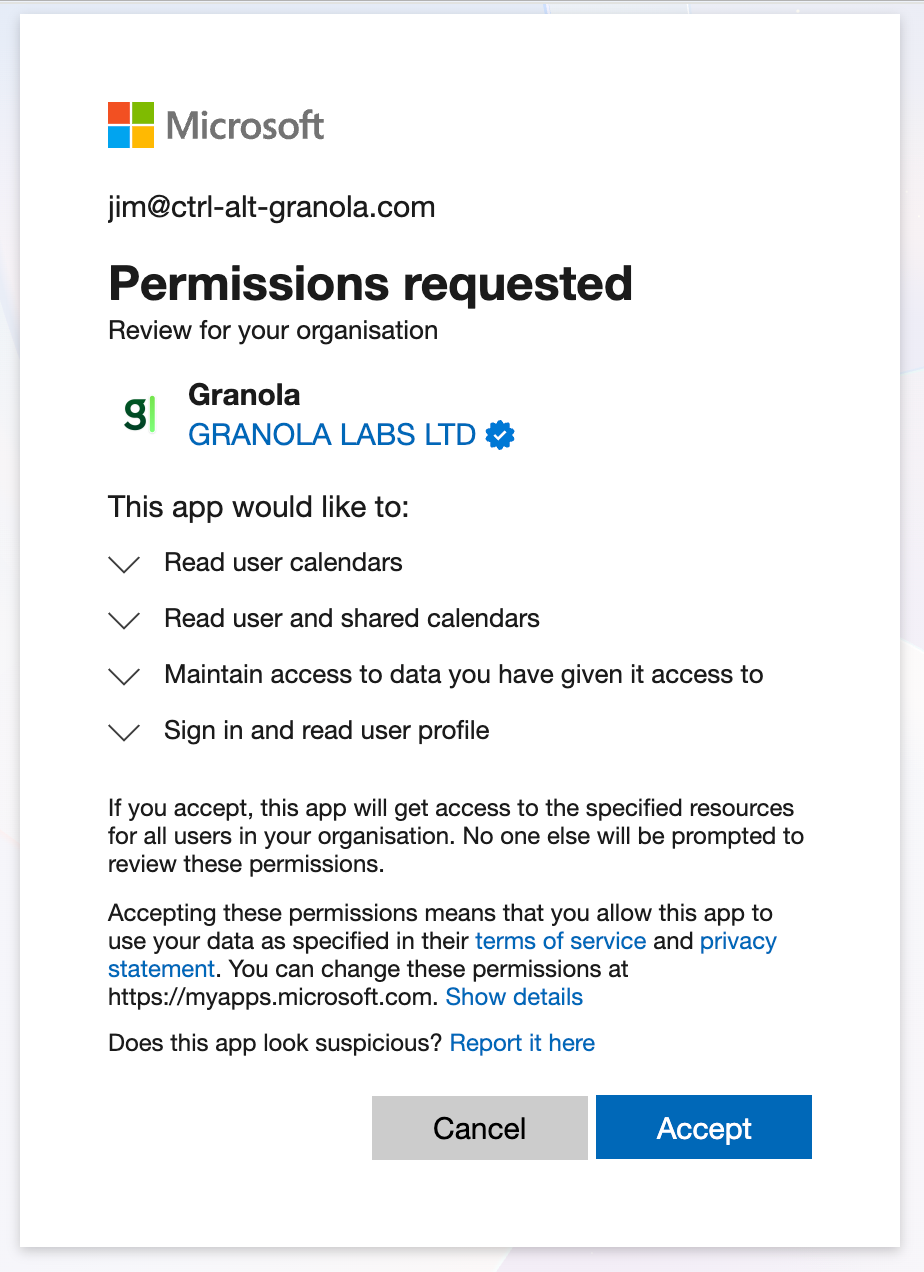
Your Microsoft 365 organization members should now be able to sign in to Granola.
If you don’t see the “Request approval” button
You may see “Need admin approval”, without a “Request approval” button:
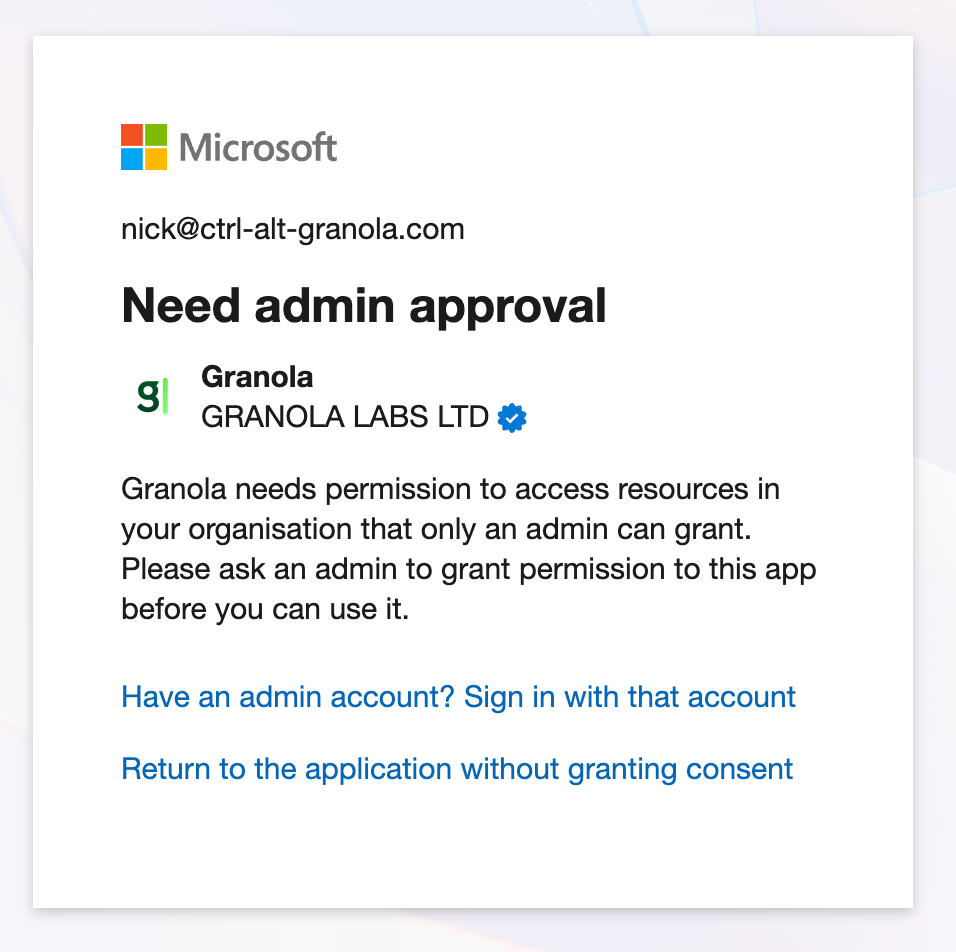
This means your admin needs to enable “Admin consent requests”.
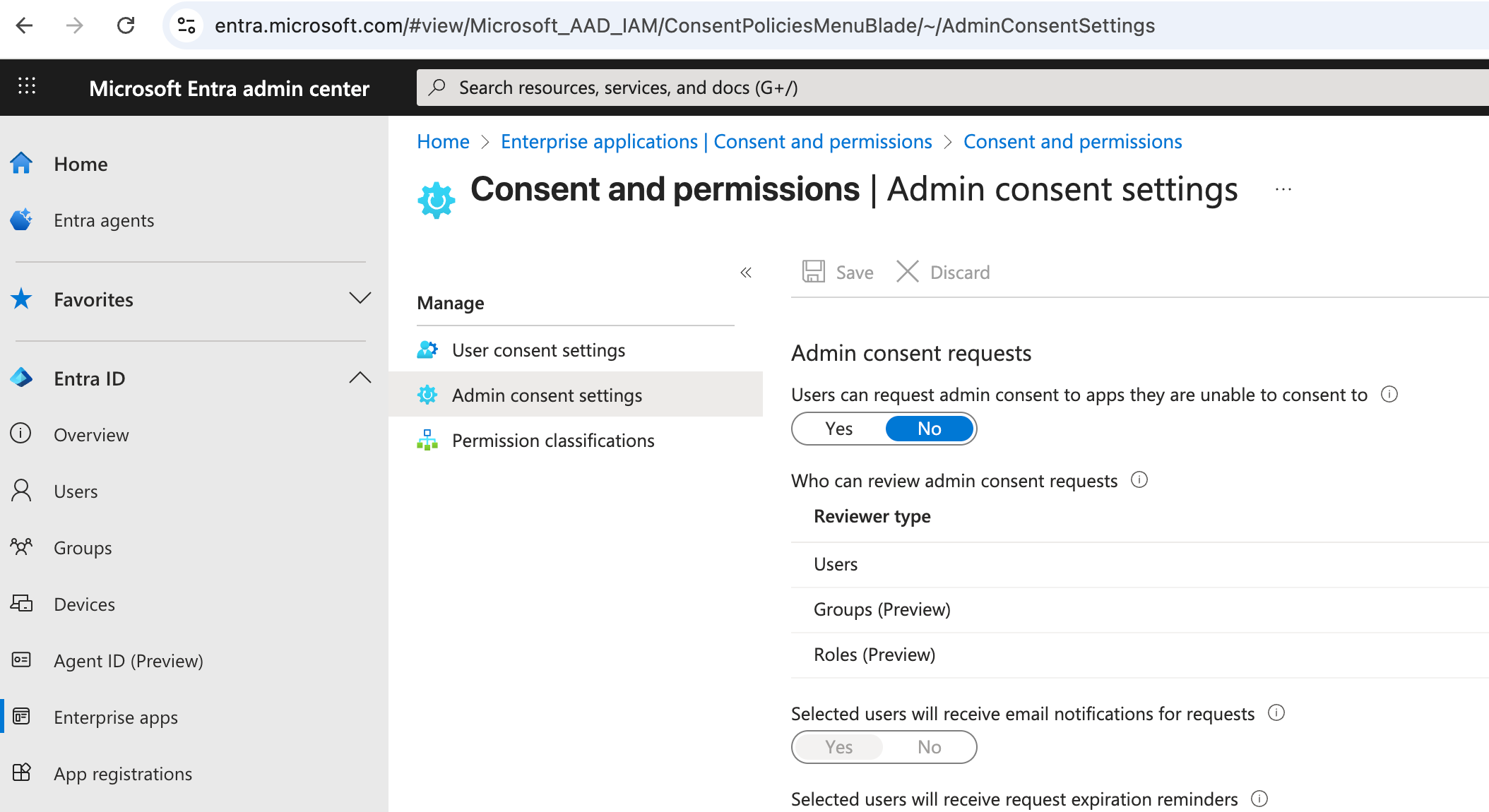
As an admin of the Microsoft 365 organization:
Set the toggle “Users can request admin consent to apps they are unable to consent to” to “Yes”.
Ask the user to try signing in to Granola again. They should see a "Request approval" button.
Follow the flow above to approve the request.
If you are unable to enable “Admin consent requests”
If you are unable to enable “Admin consent requests”, one way to approve Granola for your organization is to sign in to Granola using your admin account. Download Granola, launch it, click “Sign in with Microsoft”, and you should see:
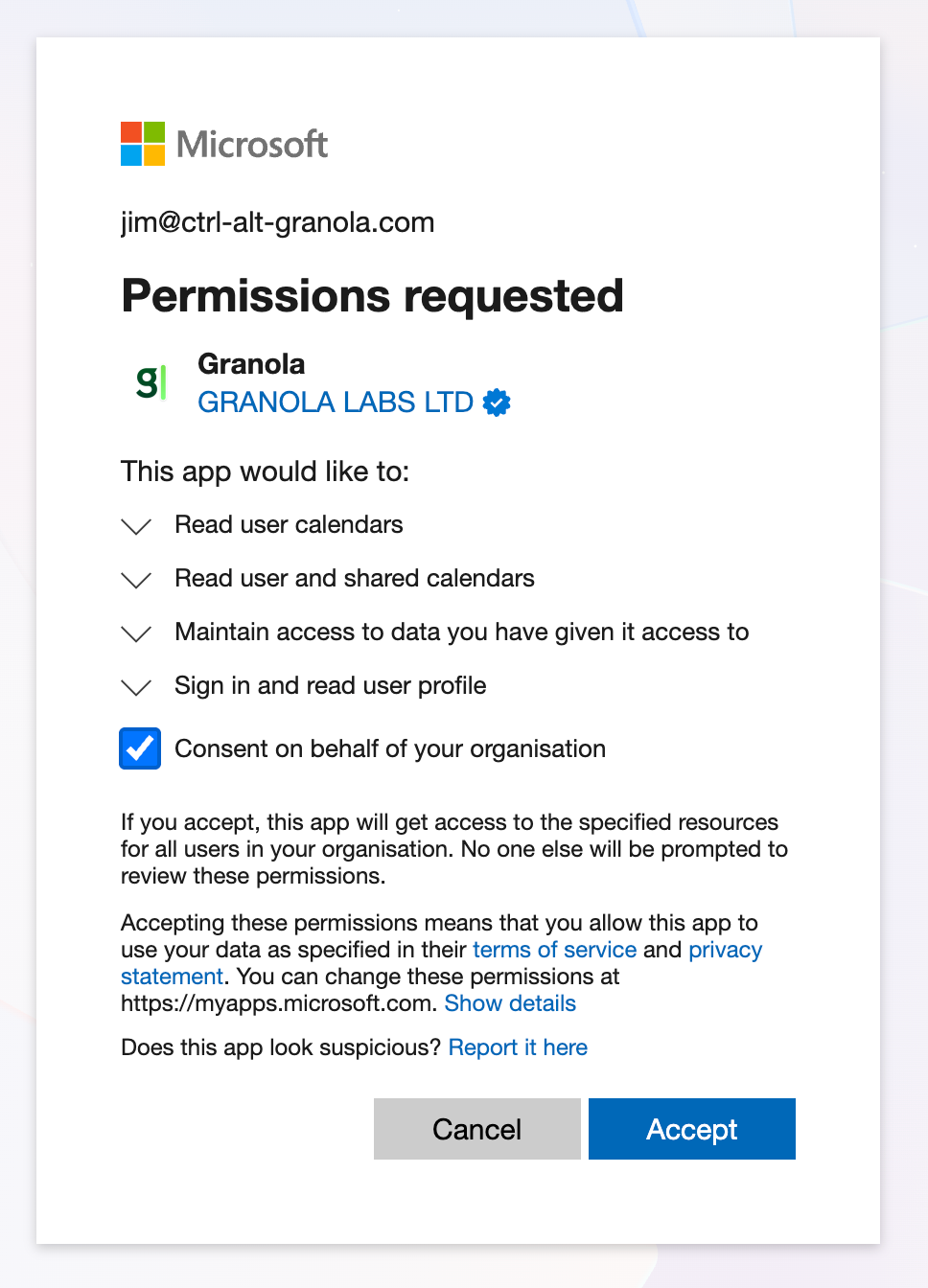
Check the box “Consent on behalf of your organisation”, then “Accept”.
You will be signed in to Granola, and your users will now be able to sign in too.
Admins: if you can’t sign in to Granola yourself
We are in the process of adding Granola to the “Microsoft Entra App Gallery”. Until then, please use one of the above methods.